API Authentication
How to register and obtain your GJD API key
Overview
All examples in this section interact with the Green Jurisdictions Database through its REST API. To make authenticated requests, you need a personal API key.
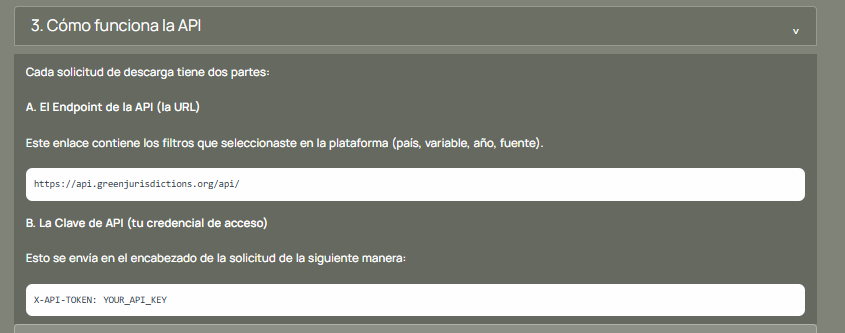
Every API request has two parts:
- The endpoint URL:
https://api.greenjurisdictions.org/api/v1/...(with path and query parameters for filters) - The API key: sent as the
X-API-TOKENheader
Step 1: Create an Account
If you don’t have an account yet, head to greenjurisdictions.org and sign up for free.
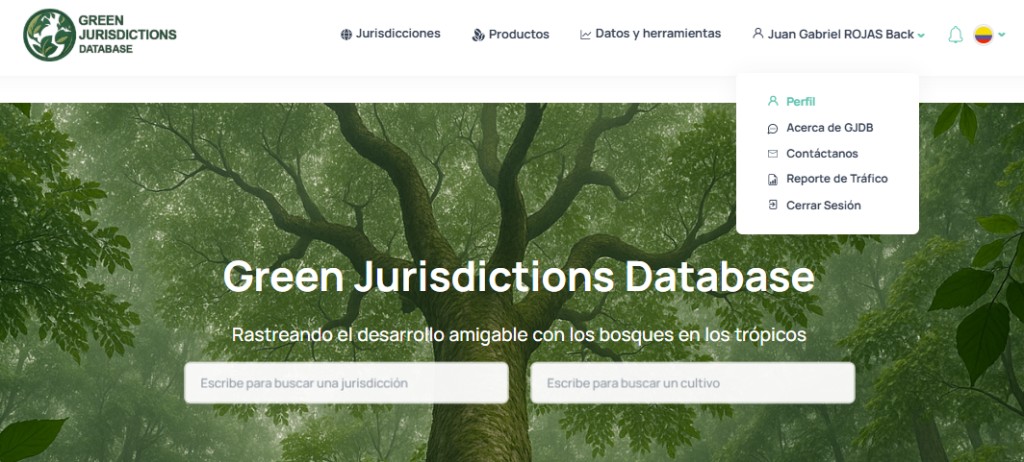
Step 2: Navigate to Your Profile
Once logged in, click on your username in the top navigation bar. A dropdown menu will appear — select Profile.
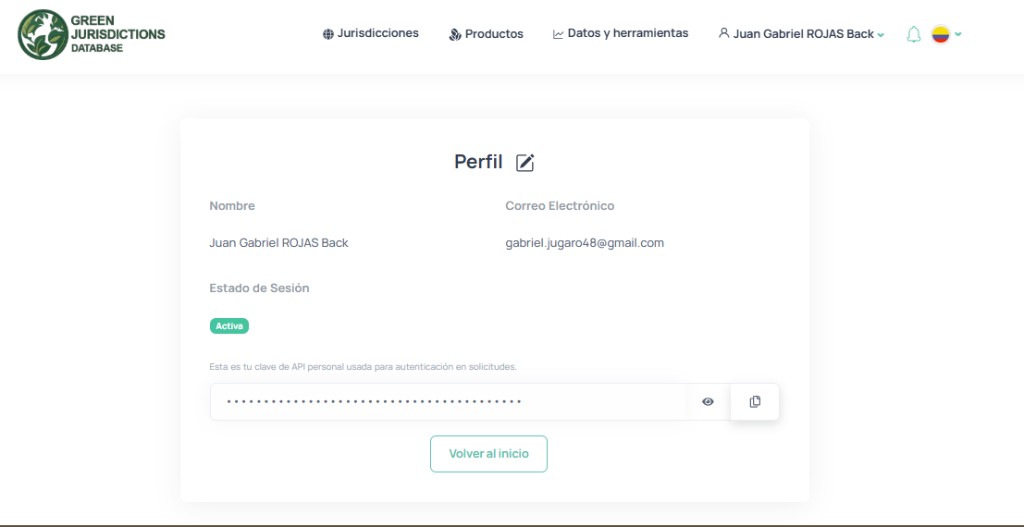
Step 3: Copy Your API Key
On the Profile page you will find your personal API key. Your session status should show as Active. Click the copy button next to the key to copy it to your clipboard.
Step 4: Store Your Key Safely
Do not paste your API key directly into your notebooks. Use environment variables instead.
Create a .env file in the project root with the following content:
GJD_API_KEY=your-api-key-hereThe repository includes a .env.example file as a template.
In your Python notebooks, load it with:
import os
from dotenv import load_dotenv

load_dotenv()
api_key = os.getenv("GJD_API_KEY")
Or without python-dotenv, set it as a system environment variable.
The .env file is already listed in .gitignore, so it will never be committed to the repository.
Step 5: Verify Your Setup
Open a Python interpreter or a Jupyter notebook and run:
import os
import requests
from dotenv import load_dotenv

load_dotenv()

url = (
    "https://api.greenjurisdictions.org/api/v1/dataPlaces/false/true/false"
    '?ID_Topic=11'
    '&ID_Countries=["CO"]'
    '&ID_Jurisdictions=["CO-AMA"]'
    '&ID_Municipalities=[]'
)

headers = {
    "X-API-TOKEN": os.getenv("GJD_API_KEY"),
    "Accept": "application/json",
    "Content-Type": "application/json",
}

response = requests.get(url, headers=headers)
print(f"Status: {response.status_code}")
print(f"Message: {response.json()['message']}")
print(f"Records: {response.json()['data']['total_data']}")
If everything is configured correctly you should see:
Status: 200
Message: Resources retrieved successfully.- JupyterLab — Create a new notebook and paste the code in a cell.
- VS Code / Cursor — Open a
.ipynbfile or use the integrated terminal. - Terminal — Run
python -c "..."or start apythonsession.
Make sure you run it from the project root directory so that load_dotenv() can find the .env file.
Next Steps
With your API key configured, you are all set to run the use cases. Head to the Use Cases section in the sidebar.