API Authentication
How to register and use your GJD API key in JavaScript.
Overview
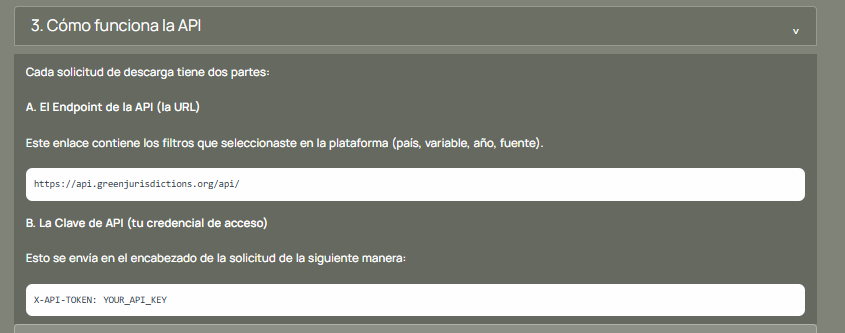
Every API request has two parts:
- The endpoint URL:
https://api.greenjurisdictions.org/api/v1/... - The API key: sent as the
X-API-TOKENheader
Step 1: Create an Account
Head to greenjurisdictions.org and sign up.
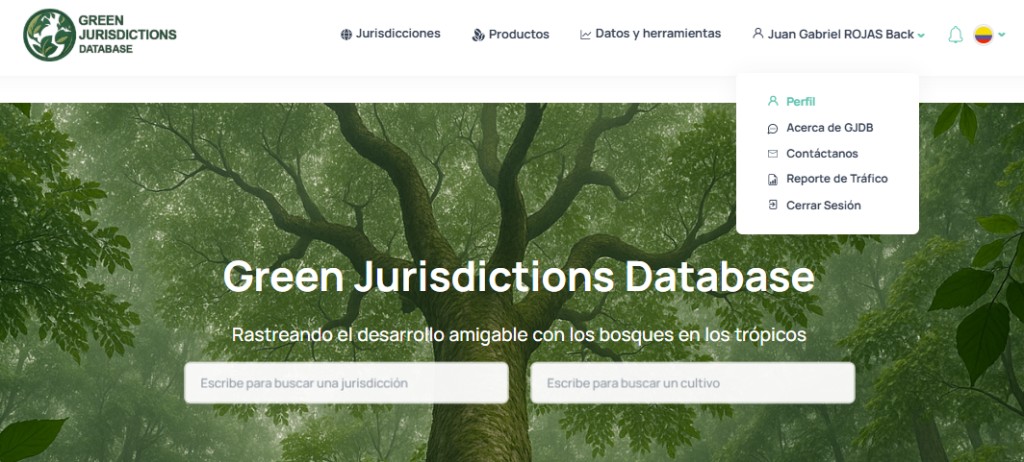
Step 2: Navigate to Your Profile
Step 3: Copy Your API Key
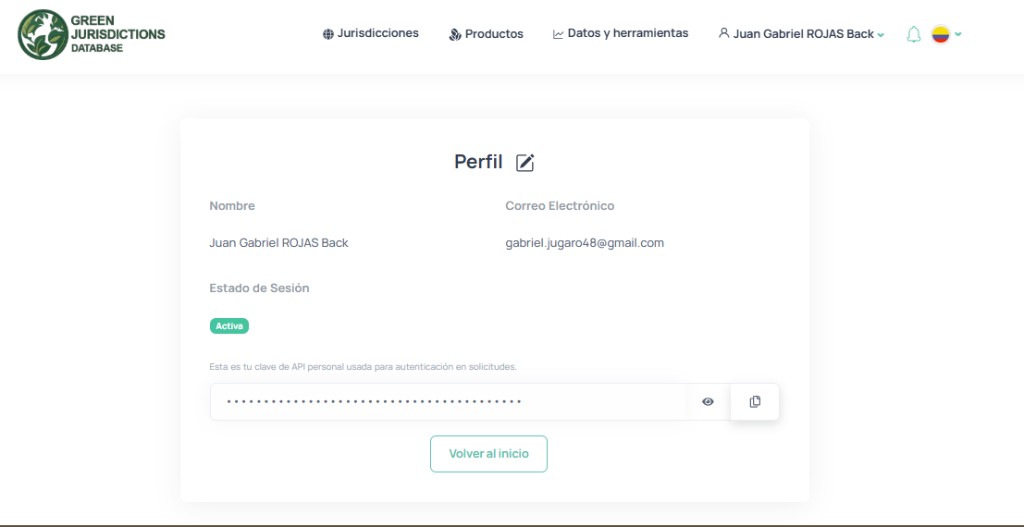
Step 4: Using the Key in JavaScript
Never commit your API key to version control. For production apps, use a backend proxy. For local demos, you can store the key in a separate
config.js file excluded from Git.
Create a file WebApp/config.js:
const GJD_CONFIG = {
  API_KEY: "your-api-key-here",
};
Then in your HTML, load it before your main script:
<script src="config.js"></script>
<script src="app.js"></script>
And use it in your fetch calls:
const response = await fetch(url, {
  headers: {
    "X-API-TOKEN": GJD_CONFIG.API_KEY,
    "Accept": "application/json",
  },
});
Step 5: Verify
Open the browser console (F12) and paste:
fetch("https://api.greenjurisdictions.org/api/v1/dataPlaces/false/true/false?ID_Topic=11&ID_Countries=[\"CO\"]&ID_Jurisdictions=[\"CO-AMA\"]&ID_Municipalities=[]", {
  headers: { "Accept": "application/json" }
})
.then(r => r.json())
.then(d => console.log(d.message, "— Records:", d.data.total_data));
You should see: Resources retrieved successfully. — Records: ...
Next Steps
Head to the Use Cases in the sidebar to see Highcharts dashboards in action.